How To Install Node.js On cPanel Server Via WHM?
The most recent v80 release of cPanel has been supported with Node.js. Before this update, cPanel lacked built-in support of Node.js; it would either have to install it through a manual process in the server, or purchase Cloud Linux, which supported Node.js.
Node.js is an open source multi-platform JavaScript runtime engine that is used to develop a wide variety of applications. Despite the fact that Node.js is not a full-fledged JavaScript framework, most of its core modules are code-written in JavaScript. It is mostly utilized to serve different applications, including the Ghost weblogging platform.
The prerequisites of the NodeJS package of cPanel are as follows:
CentOS 6 or 7, Red Hat Enterprise Linux 6 or 7, or Cloud Linux 6 or 7 OS.
• EasyApache 4
• Root‑level access
Prior environment to execute the installation of a Node.js application:
It should be noted that EasyApache 4 RPMs below must be installed on your server prior to the start:
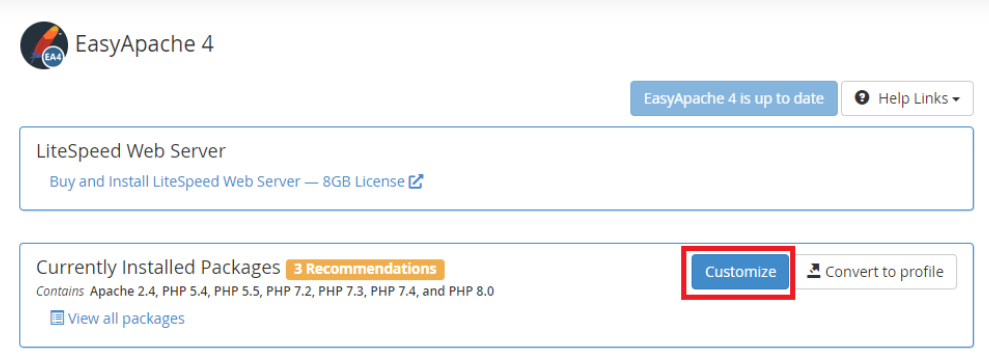
Select the Customize option in the EasyApache 4.
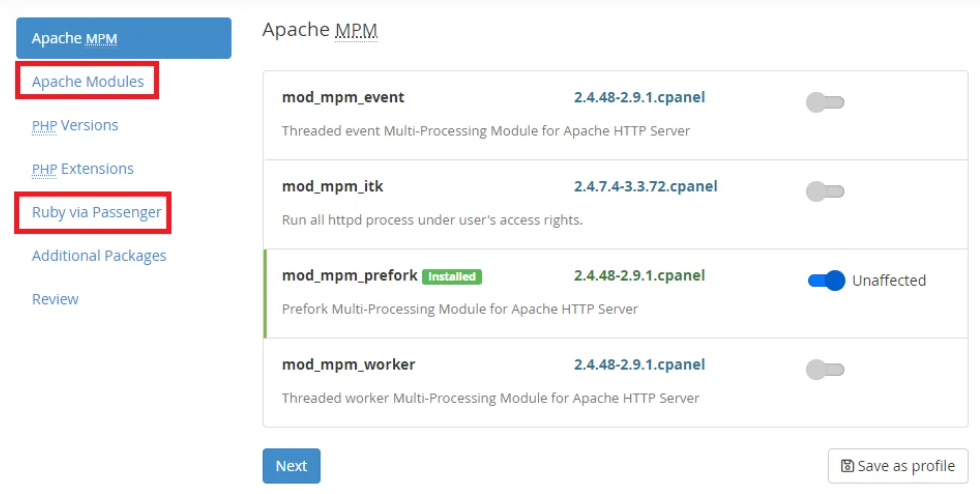
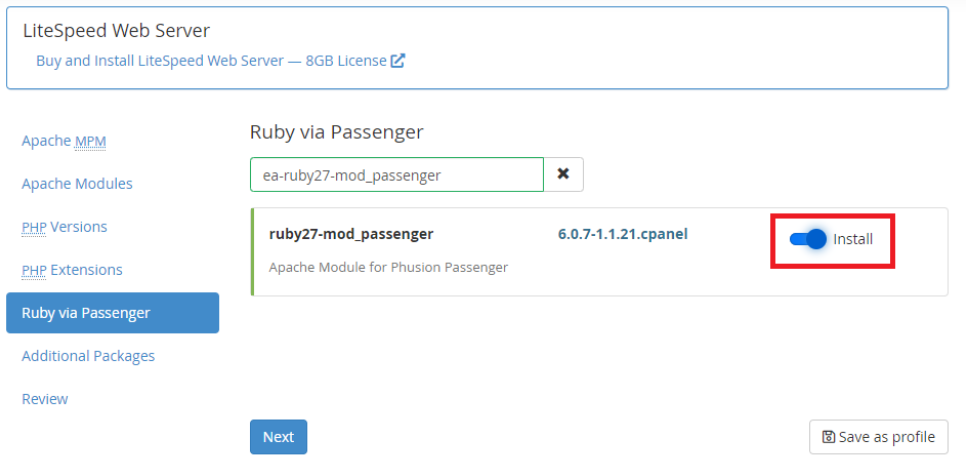
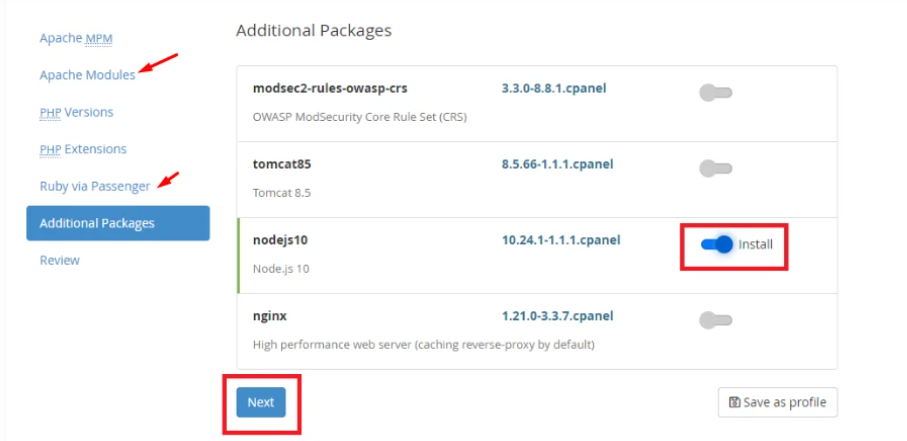
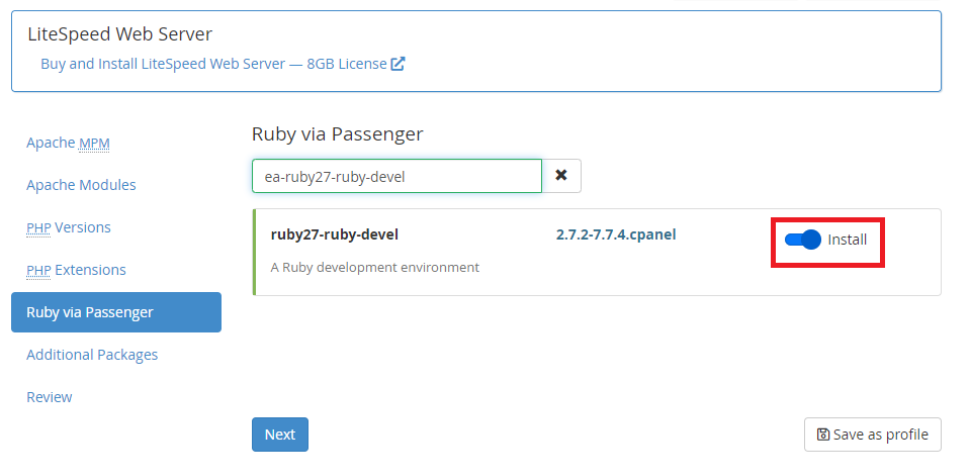
Install the prerequisites: Proceed to Apache Modules and Ruby Via Passenger:
Choose the right Node.js hosting plan to be deployed.
Install the following RPMs:
• ea‑ruby27‑mod_passenger
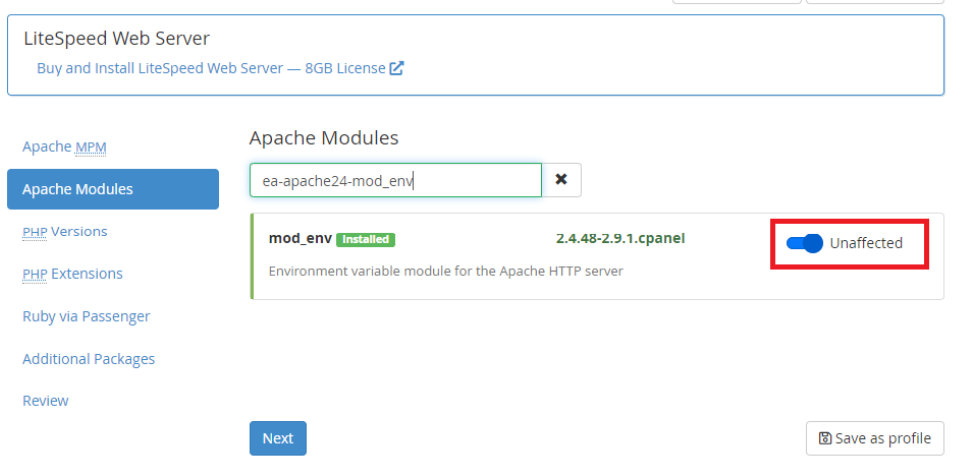
• ea‑apache24‑mod_env
• ea‑nodejs10
• ea‑ruby27‑ruby‑devel
Installation of node.js:
Method 1
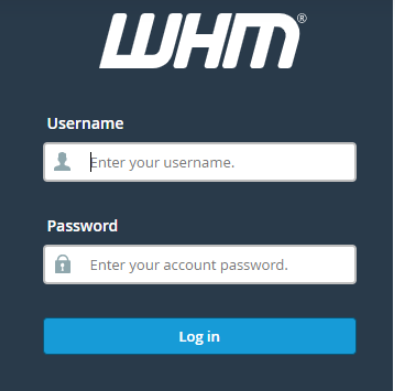
Log in to WHM with root access.
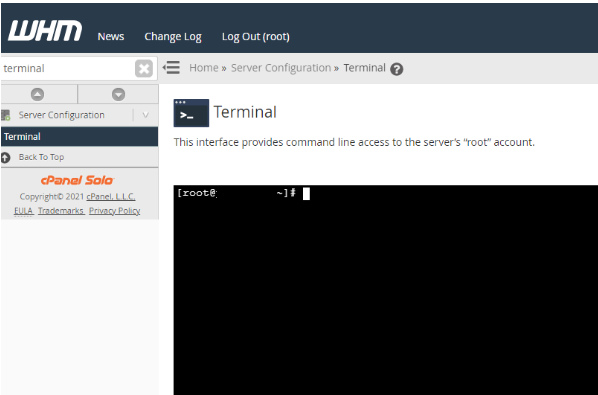
In the left side search bar, enter and press the word Terminal.
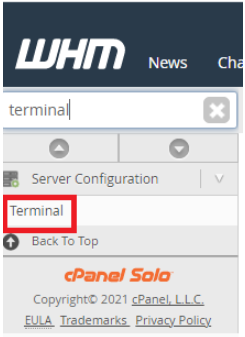
A terminal window will be opened.
In order to install the Ruby 24 mod passenger, use the following command and hit Enter:
yum install ea-ruby24-modpassenger ea-apache24-modenv.
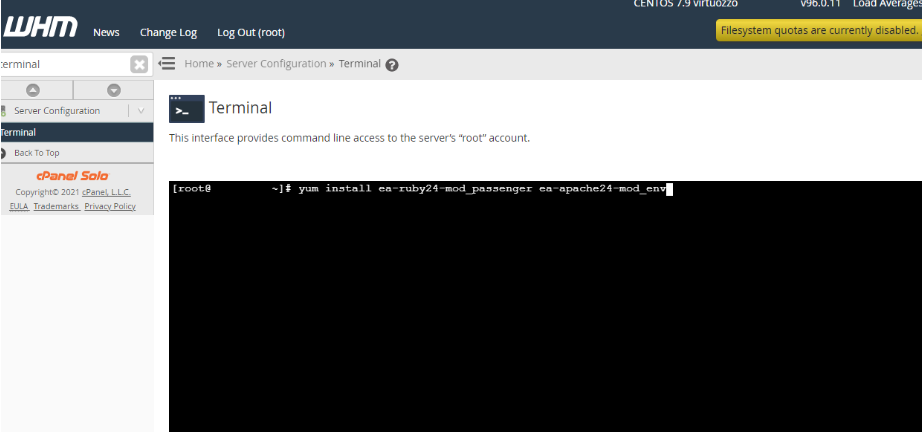
Check the installation by typing y and pressing Enter a successful message will be shown.
In order to install Node.js, type the following command and press Enter:
yum install ea‑nodejs10
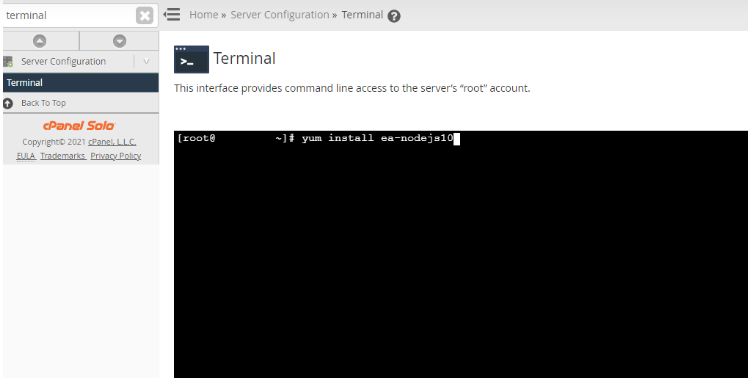
It will now demand confirmation by typing y and hitting the Enter button.
Your message will have the information that the Node.js is installed.
Method 2 (UI)
You should log in to WHM as the root account.
Click on EasyApache4 under software.
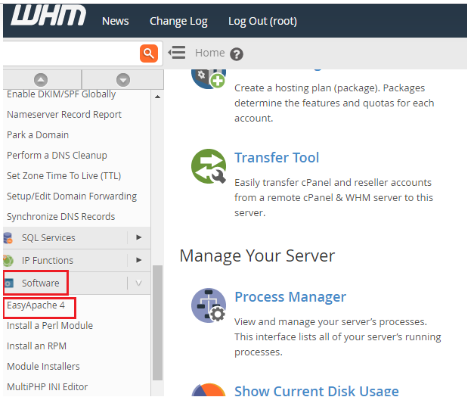
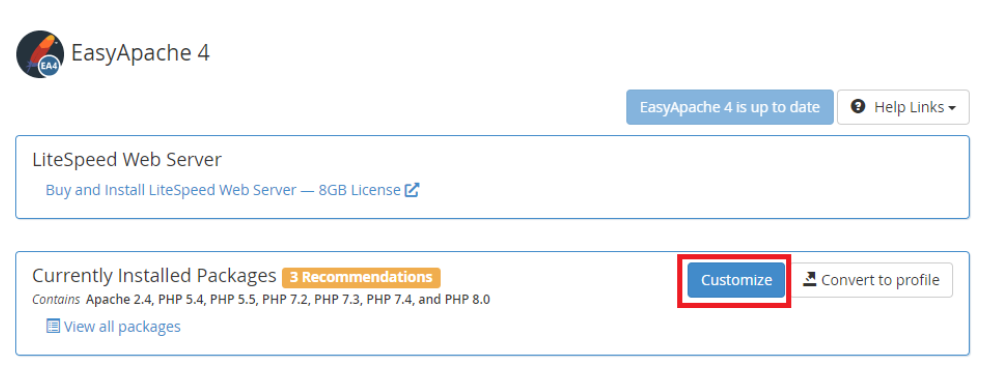
Select the customize option to add new packages.
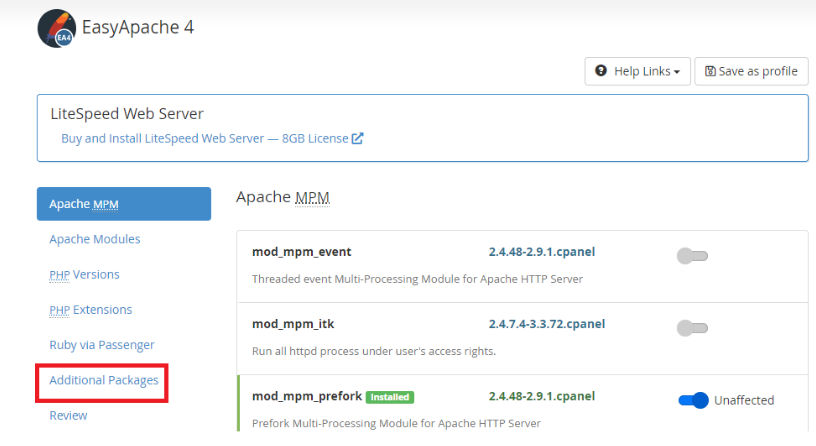
Then, you should press the button Additional Packages.
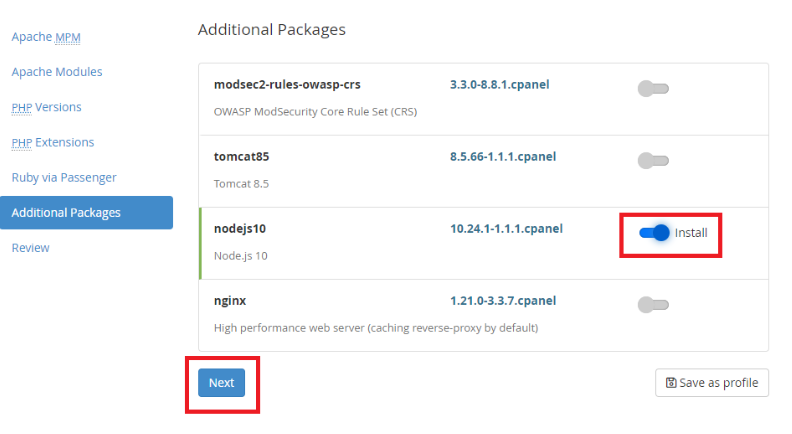
Toggle the button adjacent to Node.js10 package and proceed to next.
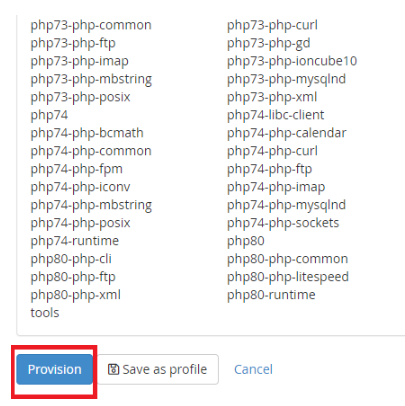
In the next window, all packages that will be installed will be provided as an overview. Make sure that the third column does not have any packages. Should a proper appearance be achieved, from the menu, then provision and the installation process will begin.
Once this has been done, the users of cPanel can install Node.js web applications by using:
- Cloning using cPanel Git repository.
- Developing a new application using the application manager.
You may also reach the support team in case you need support in carrying out the above process.
