How To Fix ‘IP Address Has Changed!’ Error In cPanel?
Occasionally, users encounter the ‘IP address has changed’ error message while using cPanel. Understanding why this issue occurs can help in effectively troubleshooting and resolving it. There are primarily two scenarios in which this error might arise:
Your internet provider might change your IP address often because of a short DHCP lease time. This usually occurs with cellular networks.
You are logging into cPanel on two different devices at the same time.
To solve this problem, try logging into cPanel again and see if the error appears. If it does, follow these steps:
Steps to Fix IP Address Error In cPanel
Log into WHM.
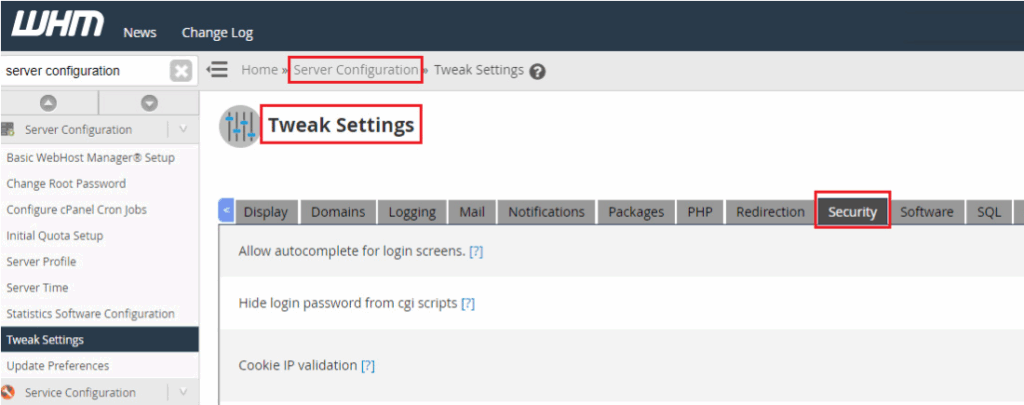
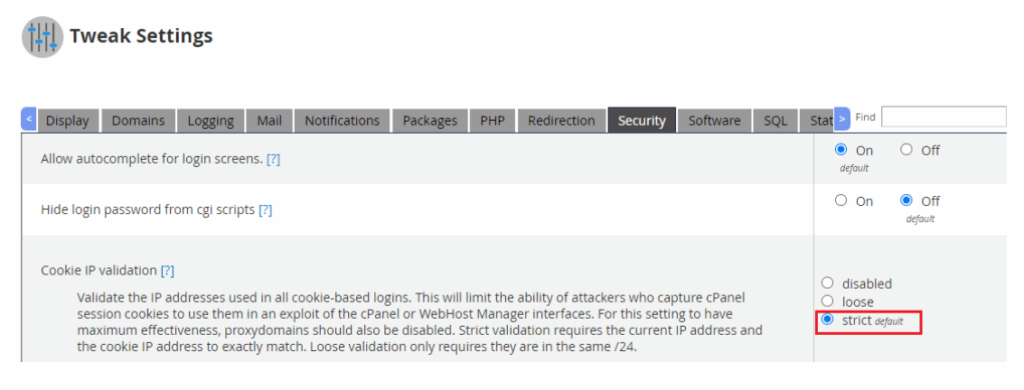
Go to ‘Server Configuration,’ then ‘Tweak Settings,’ and click on the Security Tab.
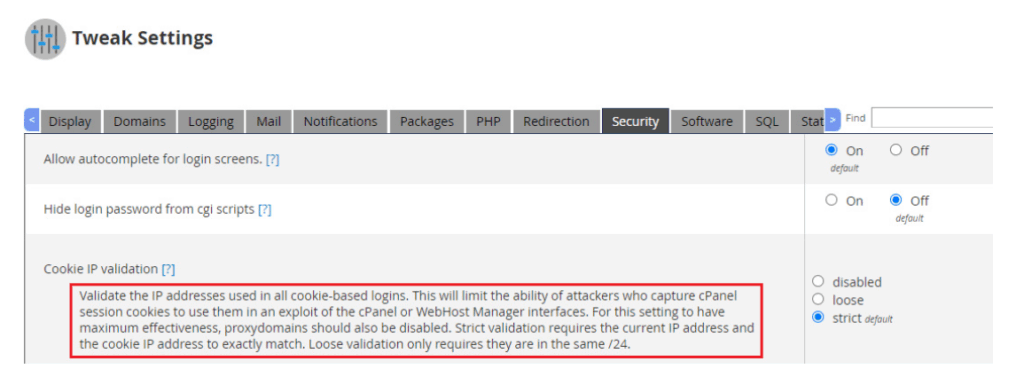
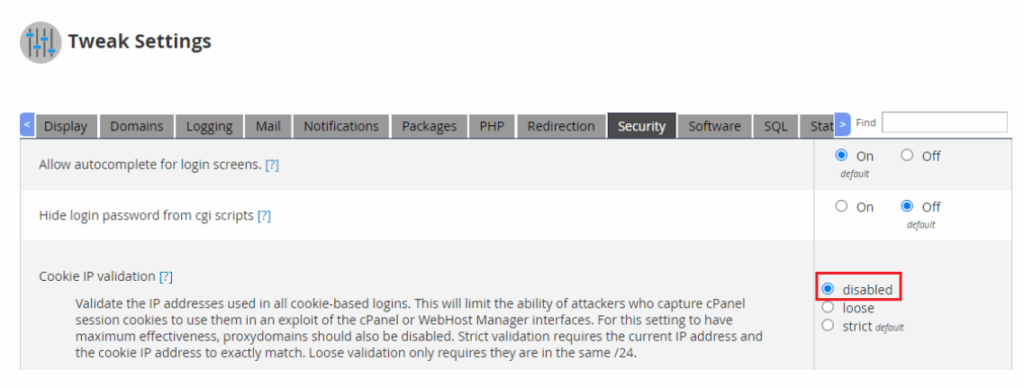
Find the ‘Cookie IP Validation’ option. Click the ‘?’ symbol for more details, which explains: This option checks IP addresses for all cookie-based logins, preventing attackers from using cPanel session cookies in hacks. To make this fully effective, turn off proxy domains.
Change this setting to ‘Loose’ to reduce how often you need to log in again for security.
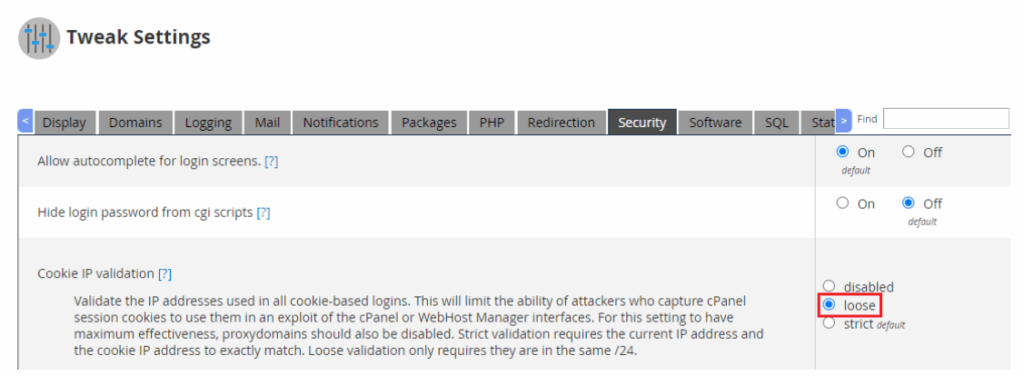
If you want more frequent checks, set it to ‘Strict,’ which is the default and what causes the IP change issue.
Turning the option ‘disabled’ means there will be no IP checks from cookies.
Choose the setting you prefer and click ‘Save’ at the bottom of the page.
Log in again to see if the issue is resolved.
