How to Delete your Email Accounts in cPanel?
Over time, as your site and company grow, you will learn that some of your email addresses will no longer be needed by the staff members or a project in the works or even a department that has been superseded. Though it is easy to create an email account in cPanel, it is also easy to delete an email account and this is one of the necessary steps in keeping a clean, secure and resource efficient hosting environment.
This tutorial is going to take you step by step through the process of permanently deleting an email account in your cPanel environment and also provide a critical warning of the necessity to save any data you might think is important in the first place.
cPanel enables users to delete their email accounts as easily as they can create a new one.
Note: Please make sure to save your valuable email messages before you delete your email account:
- Before deleting your email account, we recommend that you:
- Forward any email received in that address to a different address.
- Delete all the websites, forms, online accounts, etc.) with the email address or change to a new one.
- Keep in touch with the same account when it is deleted by creating an email autoresponder and/or email forwarding.
To delete a cPanel email account, log in to your cPanel account.
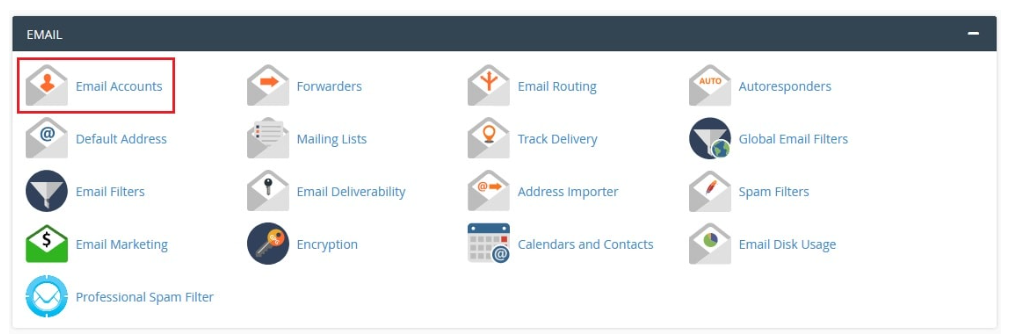
Click on Email Accounts.
A list of email accounts you currently have will be displayed.
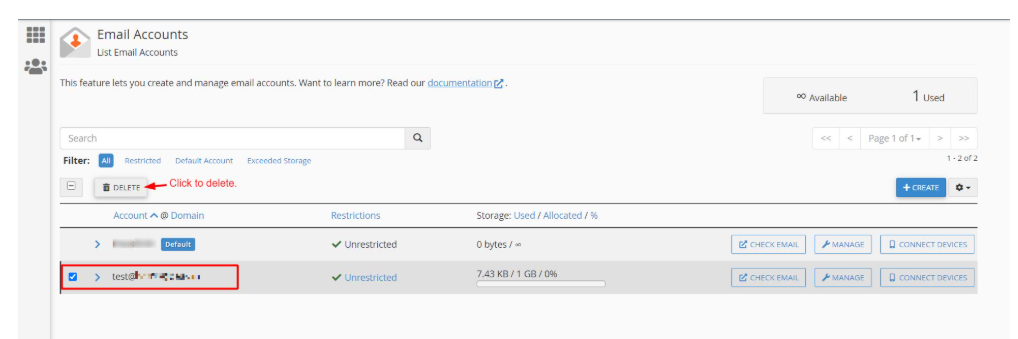
Select an email account that you want to delete and press the Delete button.
The confirmation message will be shown, which will alert that all this information related to the email accounts will be erased forever.
Click on DELETE. A success message will be displayed, which means that the email account has been removed.

