How to Create User Accounts on cPanel Server?
You can create more user accounts in your cPanel server in email, FTP, and/or Web Disk. It is not complex and involves the use of the User Manager tool on the cPanel.
To Add User Accounts on cPanel
Log in to your cPanel account.
Go to the PREFERENCES and select the user manager.

The User Manager panel will be opened showing a list of active users accounts.
Click on the Add User button.
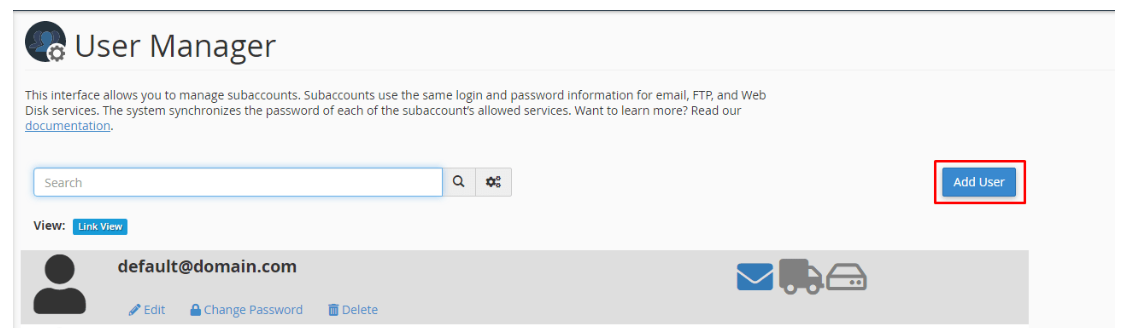
You will be presented with an interface into which you can input the user information, give the user a password and allocate services.
Fill the user details on the Basic Information section.
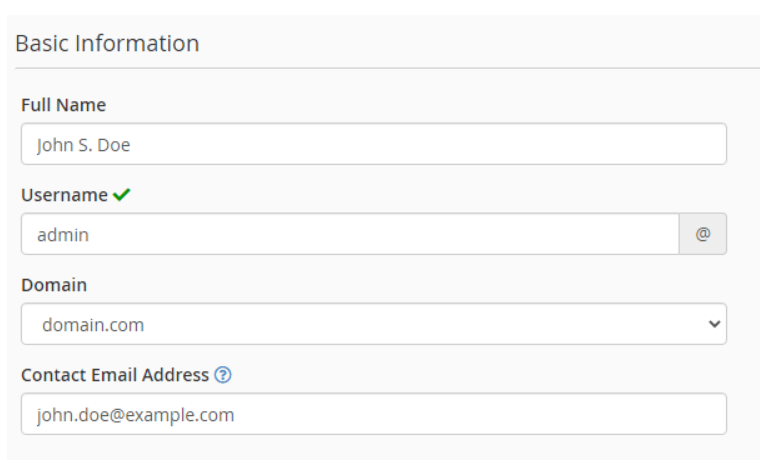
The section of Basic Information contains:
- Full Name: type in the first and last name of the user.
- The user is required to assign a username to the new user account.
- Domain: Choose a domain in the dropdown list to define the area of email, FTP and Web Disk services to be used by the user.
- Contact Email Address: This is where you enter the email address which you use to reach the user.
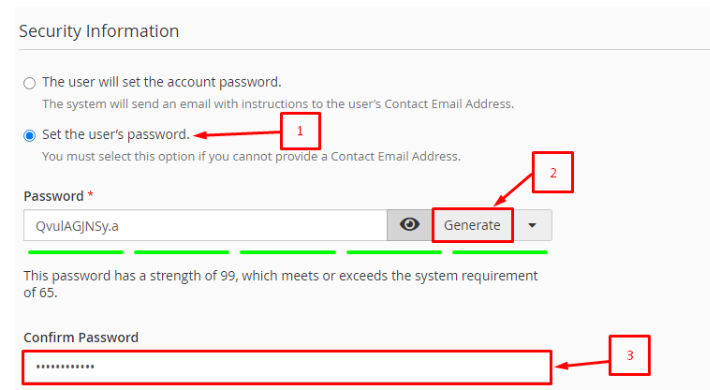
On the right, the Scroll bar is the Security Information evidence where you are to set the password of the user.
There are two approaches:
- Account password will be set by the user: You will have an option of the system emailing the user instructions to his/her Contact Email Address. This gives the users the option of configuring their passwords at their own convenience. It is particularly handy in the event of adding numerous user accounts to your system, and does not require you to give the users passwords one by one.
- Create your own password: The option allows setting your password. It should be used when the contact email of the user is not available.
We chose the option of setting the users password.
You can either enter a password in the Password field or you can tap the Alternatively, you can tap the Generate button. The button will also generate a powerful password that can be stored to be used in future.
Enter or re-enter the password into the Confirm Password box.
The next step is to choose the services that the user account wishes to be enabled. Thereafter, set the attributes of selected services.
After making sure that all the information and configurations are checked, click the Create button.
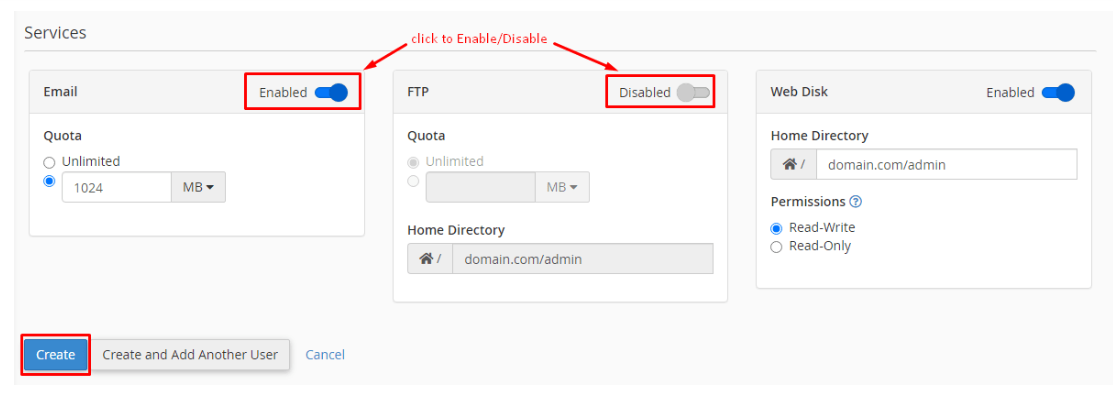
The system will generate the user account and will add to the list of user manager.
You are also given the Create and Add Another User button that you use to make the user account and go ahead to create a new one immediately without the need of getting out of cPanel.
